
Custom actions for themes and PARA
Open a theme or PARA object overview and choose Custom actions. Select an operation, add requirements and save reusable prompts through the existing AI conversation. Drafts, reviews, tables and charts stay in the right sidebar for follow-up questions.
This experimental Aino Desktop feature requires a desktop build containing the entry. Operation management, complete material processing and task statistics require an API model with tool calling. Claude Code and Codex CLI remain available for ordinary source-based conversations; switch to an API model for the host-managed operations and statistics described here. Use Edit or Agent mode to save an operation.
Start with an object
- In Library, expand Themes or a PARA category: Projects, Areas, Resources or Archives.
- Hover over an object folder and open its overview icon.
- Choose Custom actions beside the title. Send the prepared message to discover operations, or describe what you want directly.
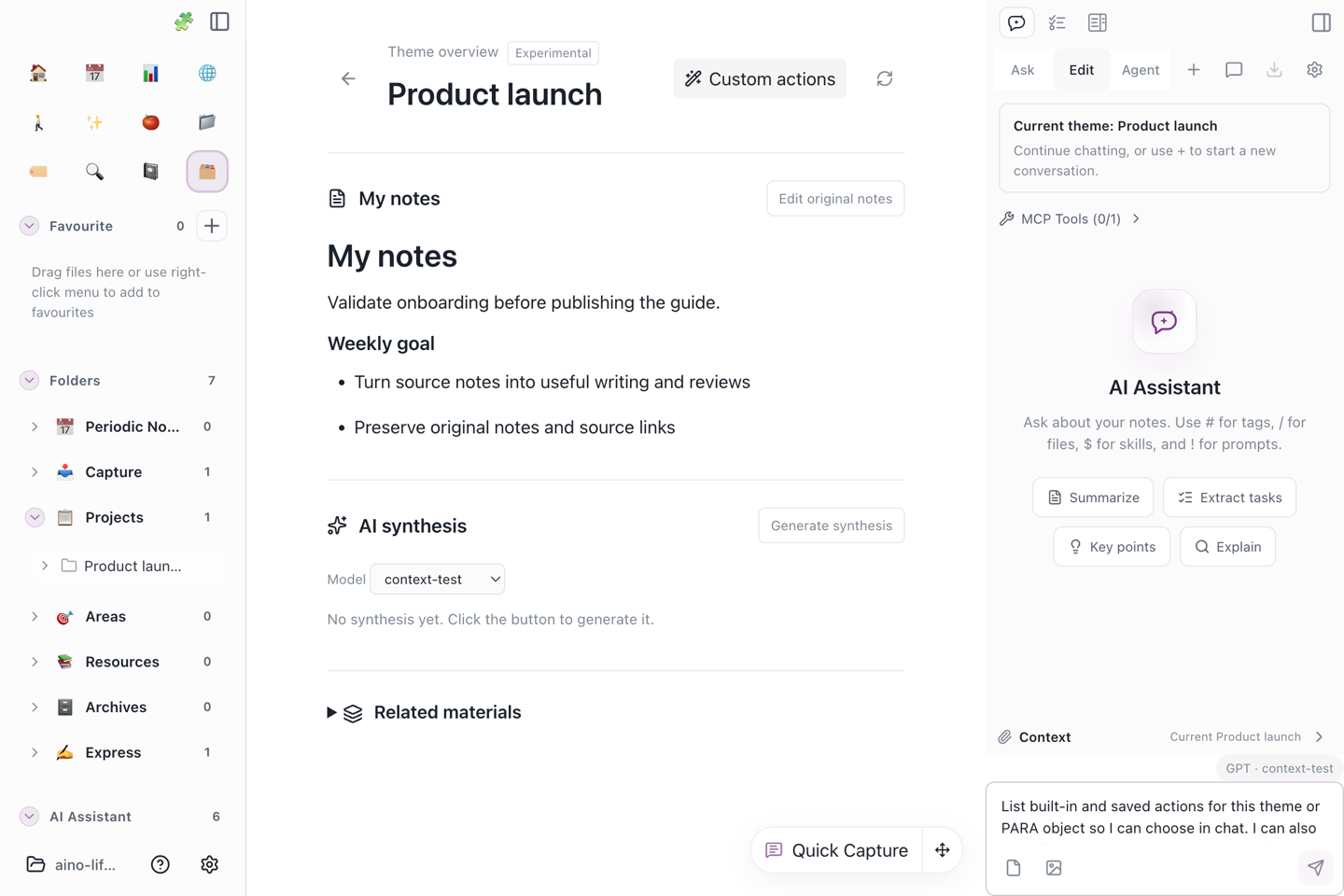
The sidebar identifies the current object. Each object keeps its own conversations; leaving the overview restores ordinary note chat, and returning lets you continue the object's discussion. Opening Custom actions preserves text already in the composer.
The default scope is the overview index, saved synthesis and materials in its folder. Use the existing # file picker to attach files from other folders for this conversation. This does not create a permanent association or read neighboring files. Tasks elsewhere with a matching theme tag are not automatically included in these statistics; attach their source files explicitly.
Write an article or review progress
Try:
For a project review:
AI can ask about the audience, angle or period in the conversation. Complete processing covers every material batch; a specific question may instead use relevant search matches and pages. Results disclose actual coverage. Unread attachment contents are not evidence.
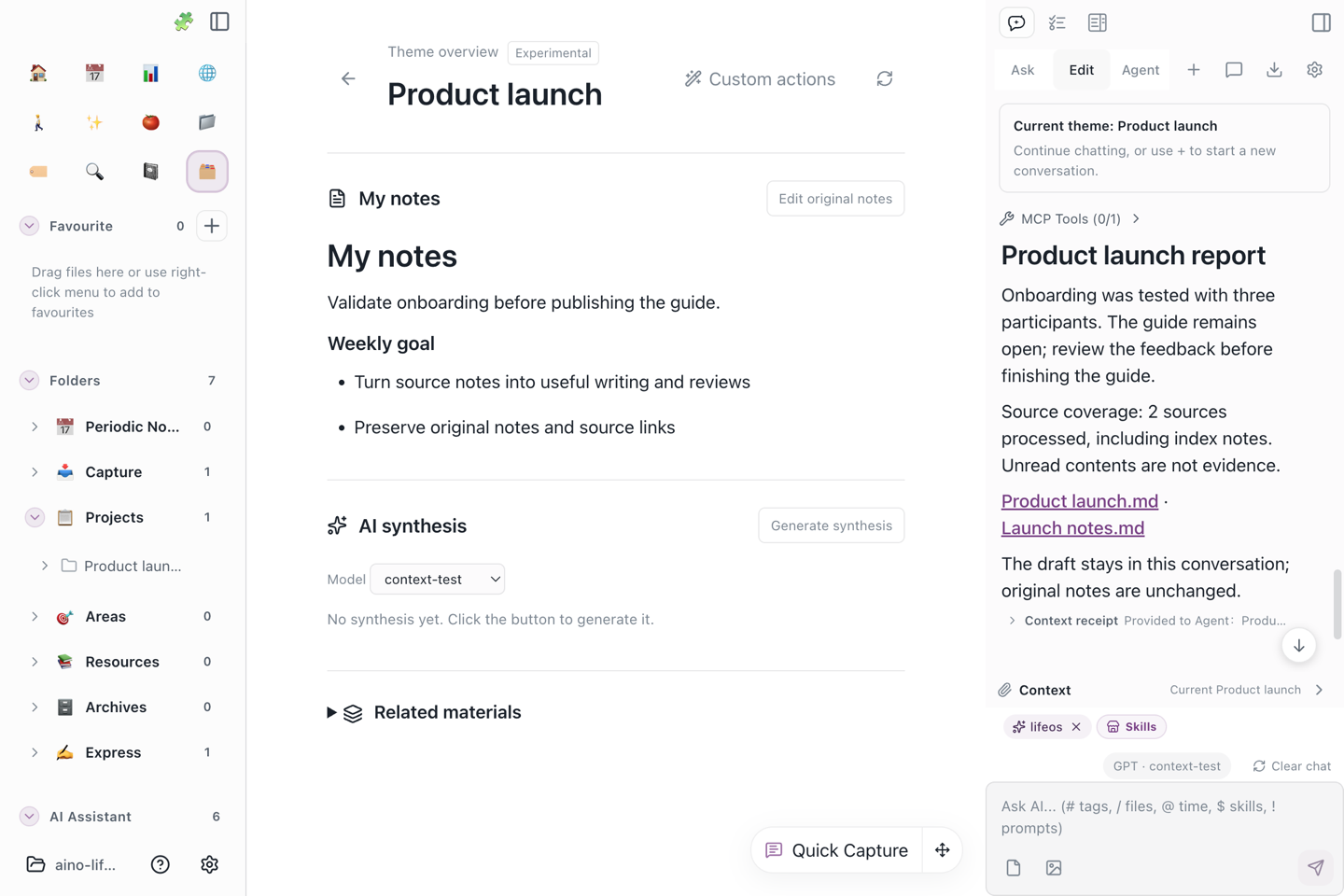
A draft does not automatically overwrite your notes. Continue with “make this shorter,” then use existing copy, Markdown export or reviewed editing to save the result. Image output depends on the selected model or tools. Aino generates task statistics charts locally.
Save a prompt as an operation
AI first presents the name, complete prompt and scope. Review them, then reply:
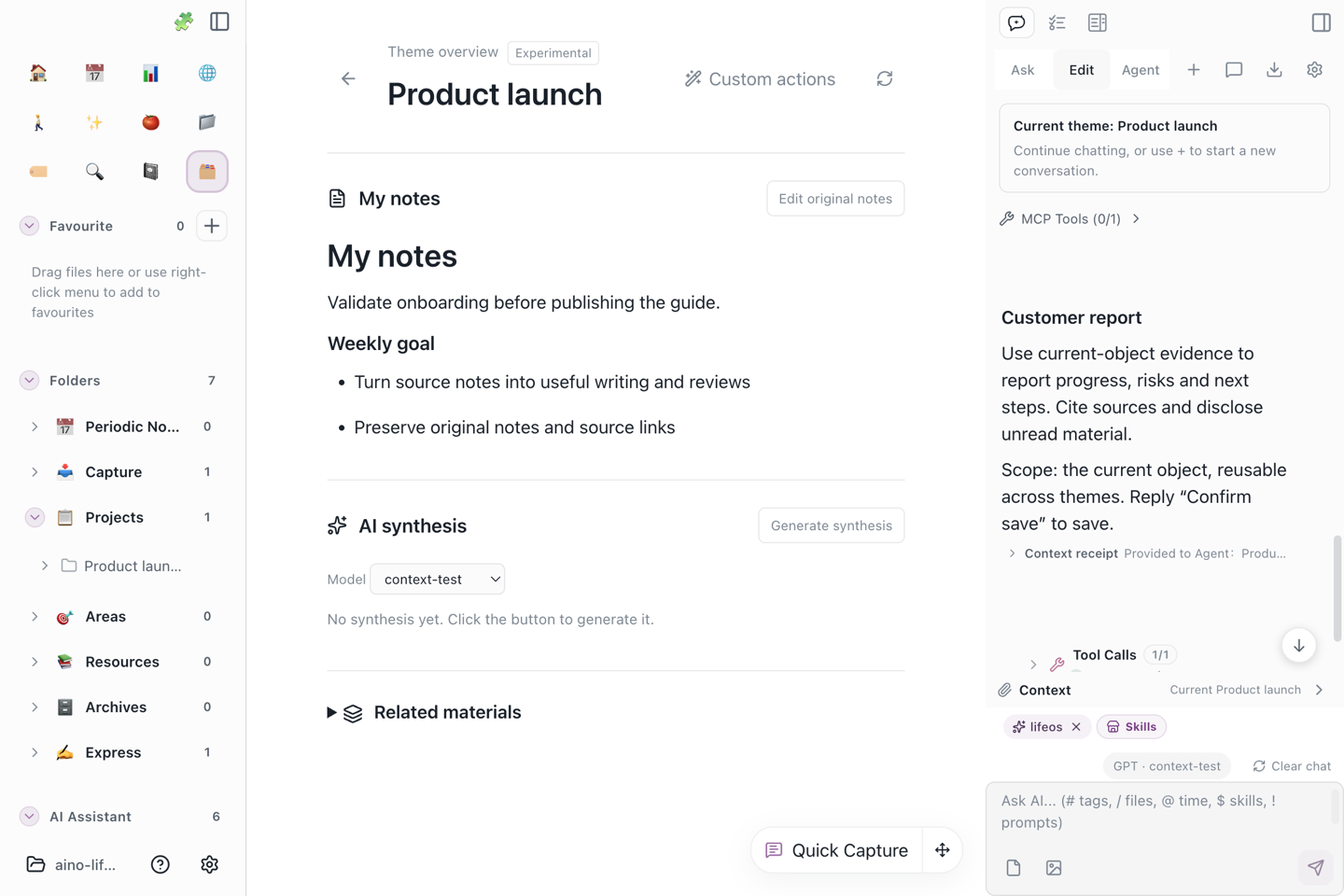
Later, ask to “Run Customer report.” Global operations can also be inserted as prompts with !; object-specific operations are discovered in that object's conversation. An object-specific definition takes precedence over a global operation with the same name.
Edit or disable an operation through the same propose-and-confirm conversation. The configuration must be staged before confirmation, and the host checks the actual save result. Missing steps trigger bounded automatic correction; unresolved failures are reported explicitly. Version checks prevent silently overwriting concurrent external edits. Disabling an operation keeps existing conversations and results. Definitions are Markdown files in the current vault. Sync availability depends on your configuration and whether the destination app supports the capability.
Analyze tasks in the sidebar
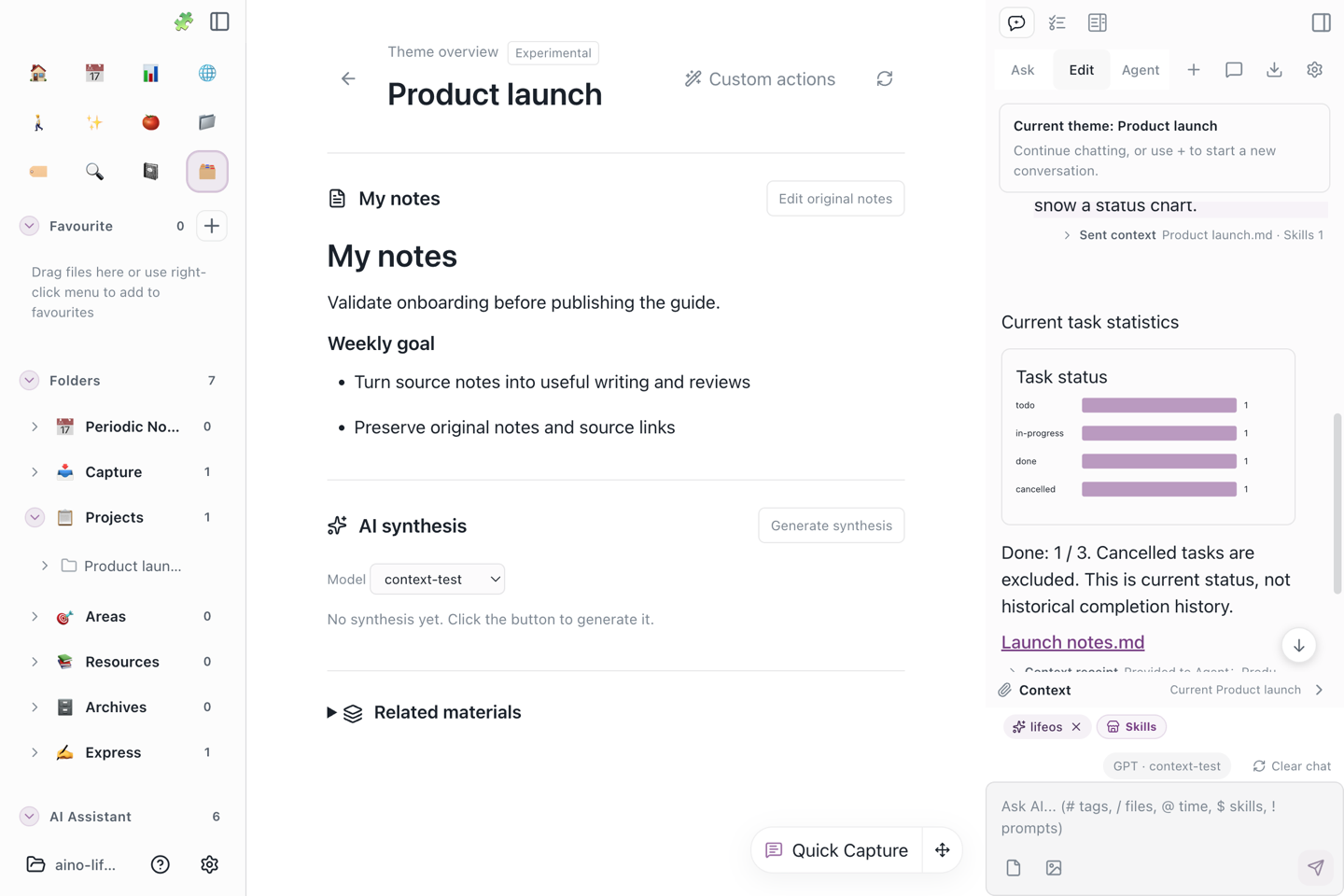
The host calculates task counts, groups and ratios. The chart reads the saved statistics snapshot while AI explains it in text. No separate center-pane analytics page is needed.
Date filters must specify completion, due or scheduled date. For example:
Without a time range, statistics include all tasks in the current object without a date setup step. Cancelled tasks are excluded from the completion-rate denominator. Missing dates are reported for the selected date field; leaving the field unspecified does not mean every task lacks a date. Current status cannot reconstruct historical daily completion trends. Charts are snapshots of a query; rerun after source changes.
Other overview capabilities
- My notes: read the original index and open it for editing rather than keeping a second project record.
- AI synthesis: generate or update the adjacent
.AI.md, review differences and save while preserving the index and existing manual content. - Related materials and source changes: inspect the object's materials, reading coverage and changes since the previous synthesis.
- Attachments: extractable PDF text can contribute evidence. Encrypted, textless or unsupported attachments retain explicit limits. Attachment notes are distinguished from their contents. Existing attachment metadata supports tags and notes for non-Markdown files.
- Long materials and retries: bounded batches process every source chunk. Unchanged summaries and completed batches can be reused after interruption; later materials are not discarded to fit a request.
Full-source writing checks a material-processing receipt rather than treating a PDF preview as the entire attachment. Batch summaries cover processed chunks but do not preserve every sentence. If sources change during reading, refresh the overview and run again.
Conversations reserve output space and compact older history when needed. The current question is never silently cut. If it still cannot fit, narrow the scope or start a new conversation. Local token budgets are estimates, not exact counts for every provider; a provider may still ask for a shorter request.
Continue with AI Chat, AI Workbench, AI Mini Apps, or Theme Notes.
Try Aino AI now
Put AI to work inside your knowledge base
Try Aino Desktop Pro free for 7 days, open a local Markdown vault, and start with a question, a summary, or one reviewable agent task.
- 7-day free trial
- Local Markdown
- Reviewable results