
Start from today
Save a record of your own, create a task, and give it a time in the calendar. AI, sync, and folder organization can wait until this workflow works for you.
Complete this one path in 10 minutes
Complete these actions in the app to check that capture, tasks, and calendar work together. AI, sync, and customization can wait.
1. Install and open Aino
Get the Desktop installer from Download. macOS supports Apple silicon and Intel; Windows and Linux support x64. The Linux AppImage needs FUSE 2 and executable permission. You can also extract the tar.gz and run aino-lifeos.
On first launch, choose “Start my first day”, select an empty folder and a content language, then preview and initialize it. The default Memos model prepares periodic notes and task entry points.
If your version still shows “Initialize LifeOS knowledge base”, choose it and select Memos. Without a first-day panel, follow the steps below directly in your daily note.
Already have Obsidian notes? Choose “Open Existing Vault” to keep your folder structure. See Migration when you want to reorganize it.
2. Save a record of your own
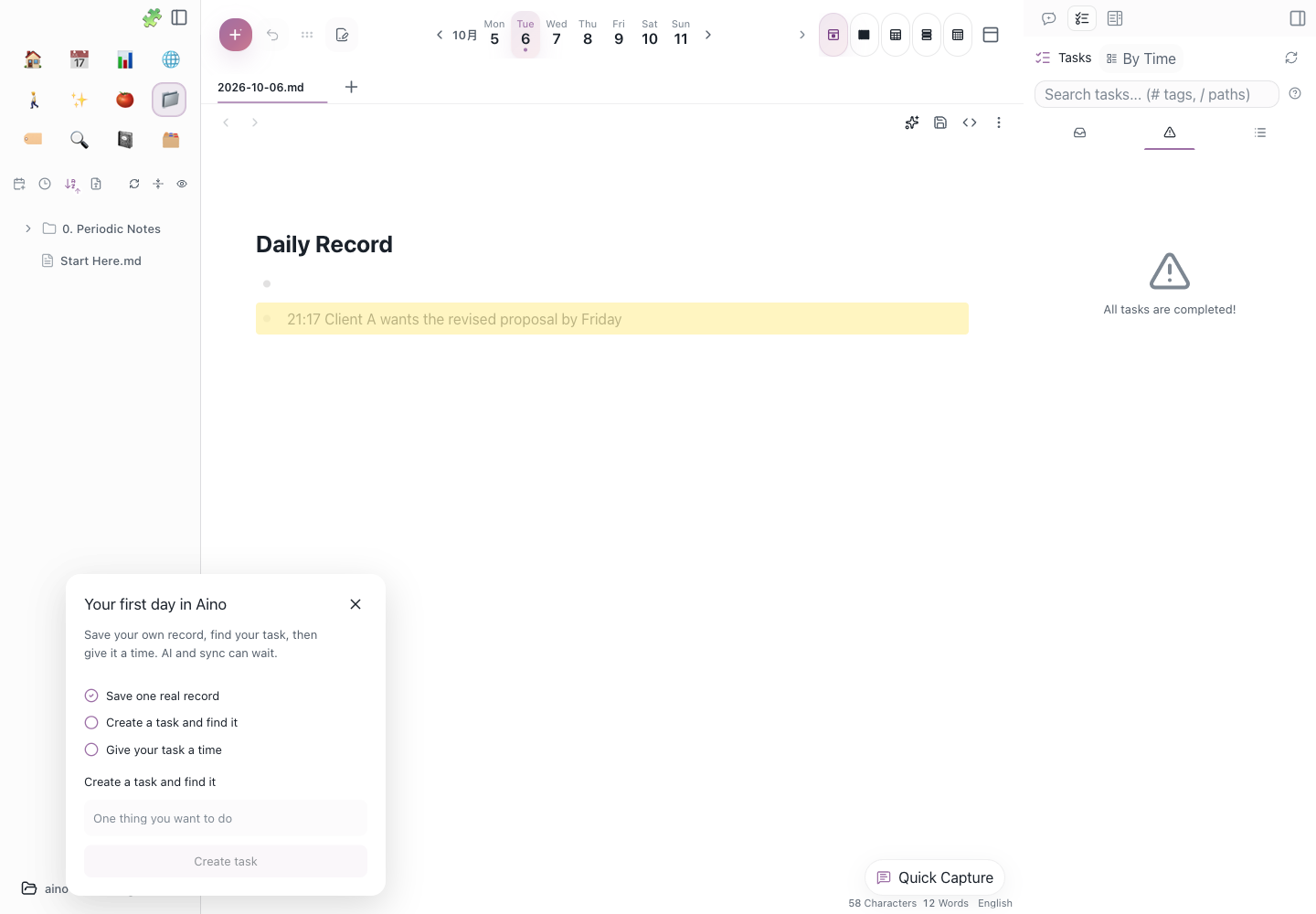
In the first-day panel, enter something you want to remember and choose “Save to today”. You can also open today's daily note, add a list entry, and save:
Check that it appears in your daily note. An unsaved draft in an input field does not count.
3. Create a task
Enter something you intend to do in the panel and choose “Create task”. Or add and save a task in the same daily note:
Open the task sidebar and check that your task appears. The Markdown checkbox is the task entry point; you do not need to copy it into another Todo app.
4. Give the task a time
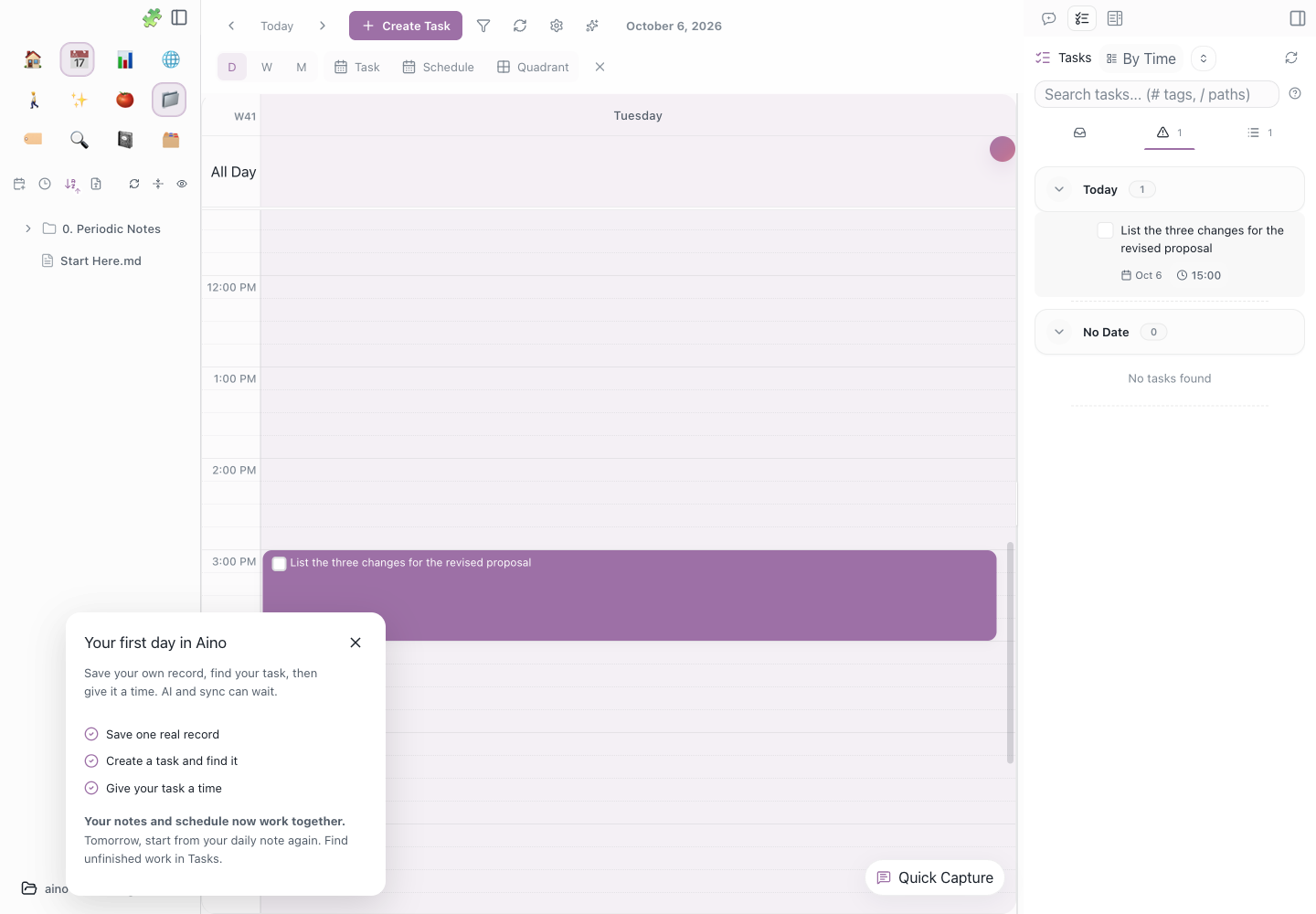
Open Calendar and drag your task from the task sidebar onto a time slot today. Check that the task appears in Calendar, then return to the original note and check that the date and time were saved there.
Your task still belongs to the original Markdown note. After you complete it, the record remains available for your evening or weekly review.
If Calendar does not show time slots, switch to day or week view. Start with the local calendar; connecting an external account can wait.
5. Return tomorrow
Tomorrow, open the daily note, capture something new, and find unfinished work in the task sidebar. At the end of the week, review what you finished and what needs another time slot.
When you want AI to organize or summarize notes, follow AI Setup to connect your service. This first-day workflow needs no API key. Configure sync later when you need it.
Read when needed
- Open the Example Vault — try a complete PARA structure
- Core Concepts — learn about tags, themes, and periodic notes
- Task Management — explore task states and operations
- Configuration — adjust folders and settings
Complete video course
Use the chapter markers when you want to explore more: