
Voice Conversation (Experimental)
Ask questions about the vault currently open in Aino Desktop and hear the answers. The speech provider handles recognition and playback; your selected text model or CLI Agent generates the answer.
Voice conversation is off by default. Enable it explicitly and supply your own speech API key. Doubao currently supports Chinese in Aino; Deepgram uses English. Speech usage and the answer model are billed separately by their providers.
Enable voice
- Configure an answer model or a signed-in Claude Code / Codex under Settings → AI Assistant → Providers.
- Open Settings → AI Assistant → Voice (Experimental) and turn on Enable experimental voice conversation.
- Select a speech provider. Its setup steps and official links appear below the selector.
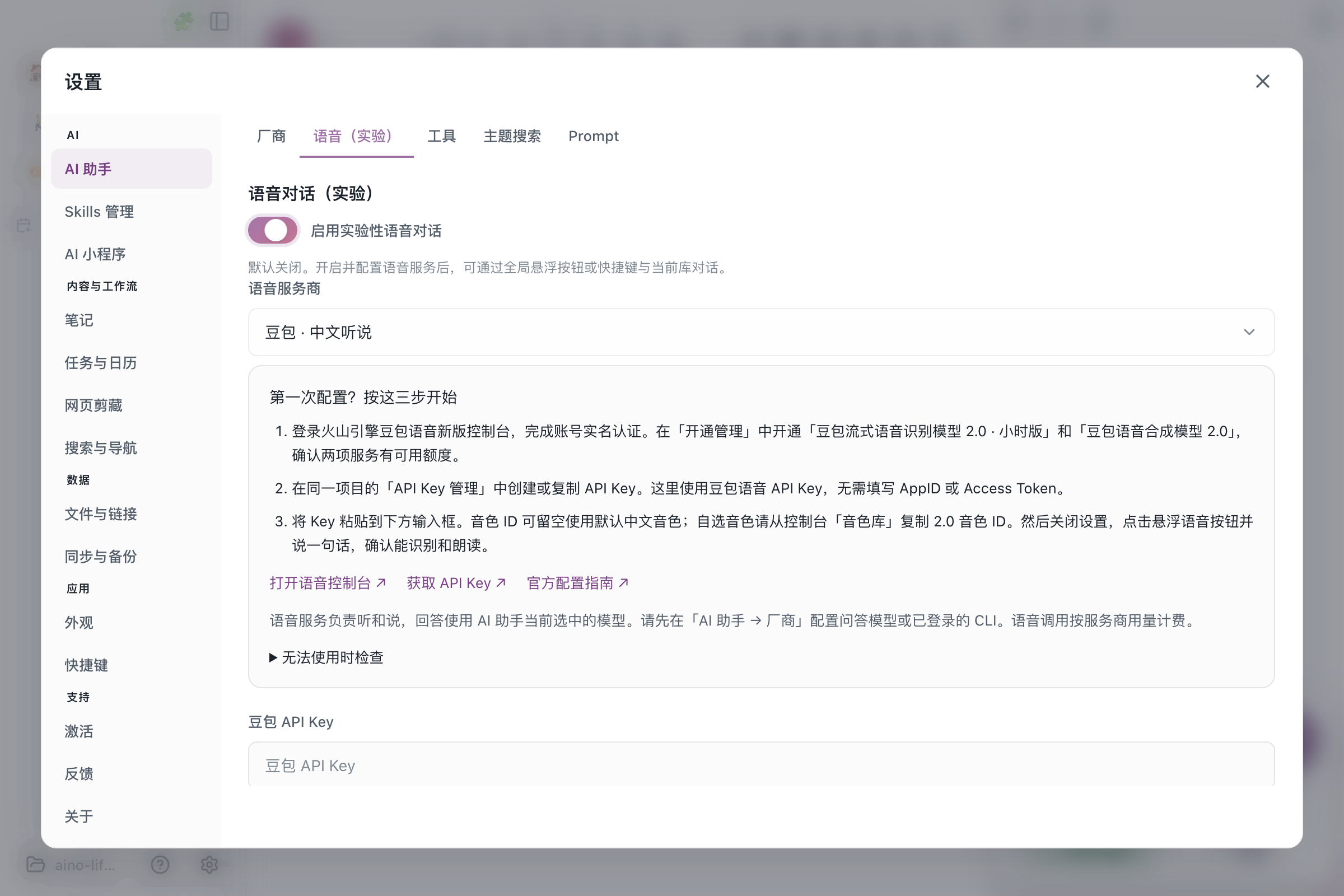
This screenshot uses the Chinese interface. The same three-step guide is available in English. Supply your own credentials; Aino does not include a default key.
Doubao on Volcengine
- Sign in to the new Doubao Speech console and complete account identity verification.
- Under service activation, enable Doubao Streaming Speech Recognition 2.0, hourly plan and Doubao Speech Synthesis 2.0. Check that both have available quota.
- Create or copy a speech key in the same project's API Key management, then paste it into Doubao API Key in Aino. AppID and Access Token are not required.
- Choose a voice by its name in Speaking voice. Vivi is the default female voice. After entering your API key, click Preview voice to play a short sample. You can stop generation or playback; changing voices or closing settings also cancels the preview. Your provider bills preview usage. For another voice, choose Custom voice and paste its 2.0 voice ID from the console's voice library.
See the official console guide. Activating only a text model or a real-time dialogue service does not activate the recognition and synthesis services required here.
Deepgram
- Sign in to Deepgram Console, select or create a project, and check its available credit.
- Go to Settings → API Keys → Create a New API Key. Create a key that permits speech recognition and synthesis, then copy and save it.
- Select Deepgram · English in Aino and fill in Deepgram API Key. The same key handles listening and speaking.
See Deepgram's API key guide. This integration currently uses English recognition and an English voice.
Start a conversation
Close settings, click the floating voice button, and ask about the current vault. Check recognition, the answer, and playback. Allow microphone access when prompted.
Configure the global voice shortcut in voice settings to start or end a conversation while Aino is in the background. It is unavailable when Aino exits. You can interrupt playback by speaking, mute, or end the session. Disabling the experimental switch hides the voice entry and unregisters its global shortcut.
Troubleshooting
- 401 / 403: check the key, project permissions, and activation of both required Doubao services.
- 429: check provider quota and concurrency limits.
- Recognition works but playback does not: check synthesis quota, voice ID, and output volume.
- Recognition works but no answer arrives: check your answer model or CLI login under Providers.
- No microphone input: check OS microphone permission, input device, and mute state.
The speech key stays in local sensitive settings, outside the vault. Cloud speech sends audio and text for playback to the selected provider. Vault questions continue to use your configured answer model.
Next: AI Chat · Configuration
Try Aino AI now
Put AI to work inside your knowledge base
Try Aino Desktop Pro free for 7 days, open a local Markdown vault, and start with a question, a summary, or one reviewable agent task.
- 7-day free trial
- Local Markdown
- Reviewable results