Sync Your Aino Vault

Aino sync keeps a personal Markdown vault available on desktop, iPhone and Android. Your files are stored with the provider you choose. Sync is intended for personal devices; use a separate backup and avoid simultaneous edits to the same file.

We recommend Cloudflare R2 (S3) by default for English, Traditional Chinese and other non-Simplified-Chinese interfaces. Alibaba Cloud OSS (S3) is the default recommendation for Simplified Chinese. The app uses the same order and default for new S3 connections. Changing language never switches an existing connection. Test from your usual networks first.

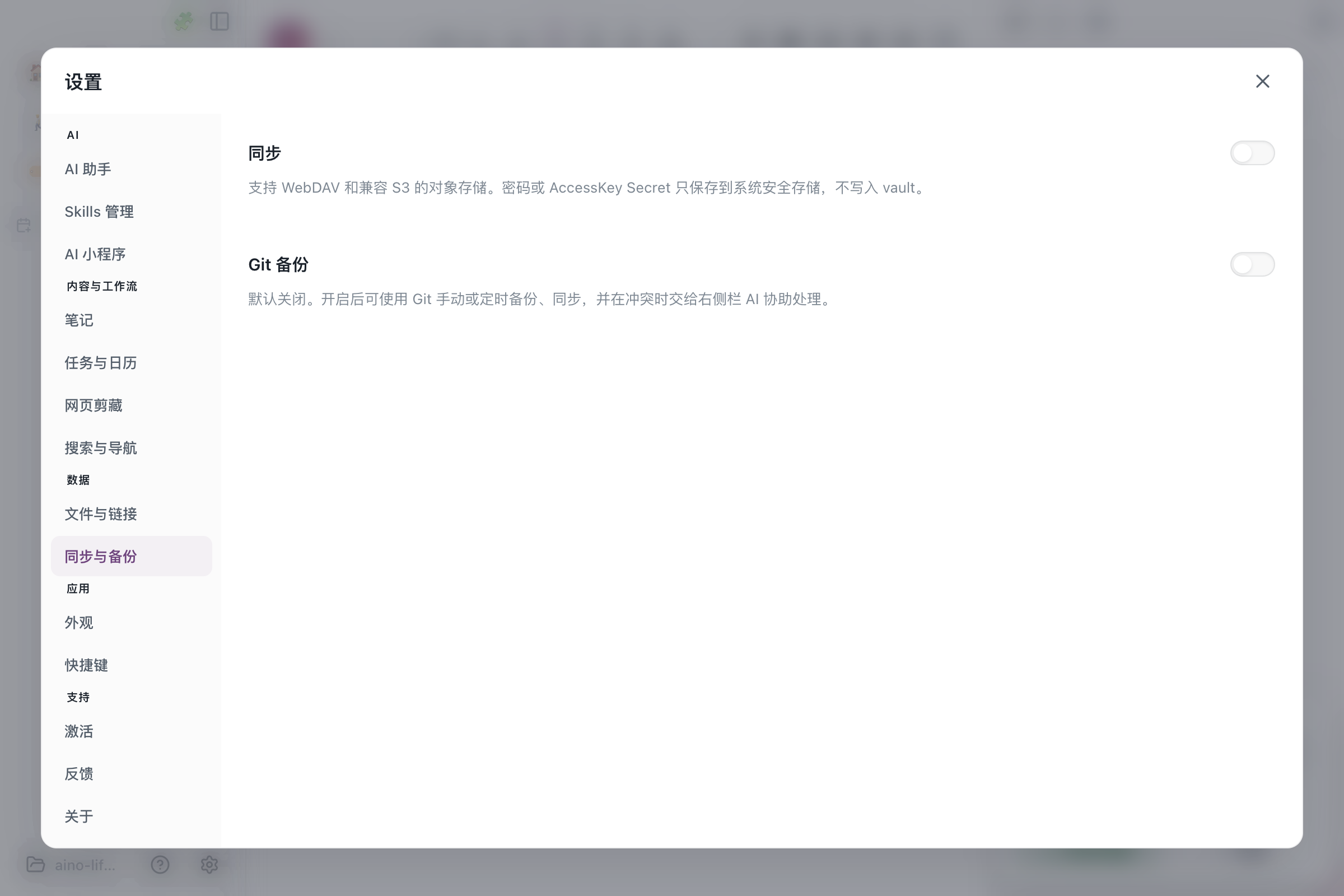
Open Settings → Sync & Backup, enable Sync, and choose S3. Git backup is configured separately.

Choose a sync provider

ServiceSelect in AinoKey settings
Cloudflare R2S3 → Cloudflare R2 (S3)Account-level endpoint, region auto, path-style on
Alibaba Cloud OSSS3 → Alibaba Cloud OSS (S3)Actual region, private bucket, path-style off
Tencent Cloud COSS3 → Tencent Cloud COS (S3)Full APPID-suffixed bucket name, path-style off
Amazon S3S3 → CustomActual bucket region and bucket-scoped IAM credentials
MinIOS3 → MinIOServer URL reachable from every device and administrator-provided region
NextcloudWebDAV → NextcloudComplete WebDAV URL, account ID and app password

Devices sharing a vault need matching server, bucket or WebDAV account, and remote directory settings. Credentials are specific to each provider. Presets do not create accounts or buckets.

Cloudflare R2 (S3)

  1. Enable R2 in the Cloudflare dashboard and create a private bucket.
  2. Create an R2 API token with Object Read & Write, scoped to that bucket.
  3. Save the Access Key ID and Secret Access Key shown for S3 clients.
  4. Copy the S3 API endpoint from the dashboard.
  5. In Aino, select Cloudflare R2 (S3).
FieldValue
Endpointhttps://<ACCOUNT_ID>.r2.cloudflarestorage.com
BucketYour R2 bucket name
Regionauto
AccessKey ID / SecretThe S3 credentials created above
Prefix/Aino, identical on every device
Path-styleOn

R2 preset in Aino Desktop's Chinese interface

Replace account-id in the preset with your account ID, or paste the complete endpoint from the dashboard. EU jurisdiction buckets use their jurisdiction-specific endpoint. Do not enter the Cloudflare API bearer token in the S3 credential fields. Public bucket access and a public development URL are not needed.

See R2 S3 setup, S3 API region and jurisdiction endpoints.

Alibaba Cloud OSS (S3)

  1. Enable Object Storage Service in the Alibaba Cloud console. Create a dedicated bucket using Standard storage and Private access.
  2. Note its region and public endpoint. Do not use an -internal endpoint from a phone or home computer.
  3. Create a dedicated RAM user and an AccessKey pair.
  4. Attach a bucket-scoped policy: allow oss:ListObjects on acs:oss:*:*:YOUR_BUCKET; allow oss:GetObject, oss:PutObject and oss:DeleteObject on acs:oss:*:*:YOUR_BUCKET/*. Replace YOUR_BUCKET with your bucket name. Avoid using your account's root credentials.
  5. In Aino, select Alibaba Cloud OSS (S3) and enter the values below.
FieldValue
EndpointHangzhou example: https://oss-cn-hangzhou.aliyuncs.com; use your bucket's regional endpoint
BucketBucket name only
Regioncn-hangzhou for Hangzhou; match the actual region
AccessKey ID / SecretYour dedicated RAM credentials
Prefix/Aino, identical on every device
Path-styleOff

OSS preset in Aino Desktop's Chinese interface

The screenshot shows the Chinese interface. The preset uses Hangzhou as an example and does not create a bucket. Keep the bucket private. Do not include the bucket name or an object path in the endpoint. If your account or region needs additional access configuration, follow the console error and official documentation.

See OSS S3 compatibility and OSS credentials and endpoints.

Tencent Cloud COS (S3)

If you already use Tencent Cloud, select Tencent Cloud COS (S3) to keep sync data in your own private bucket.

  1. Create a private standard-storage bucket in the COS console. Record its region and complete bucket name, including the APPID suffix, such as aino-sync-1250000000.
  2. Prepare a dedicated CAM sub-user with programmatic credentials. Scope object listing, reading, writing and deletion to the target bucket; public access and account-wide administration are unnecessary.
  3. In Settings → Sync & Backup → S3, select Tencent Cloud COS (S3).
FieldValue
EndpointGuangzhou example: https://cos.ap-guangzhou.myqcloud.com, without a bucket name or object path
BucketFull name with APPID suffix, for example aino-sync-1250000000
Regionap-guangzhou for Guangzhou; match both region and endpoint to the actual bucket
AccessKey IDCAM SecretId
AccessKey SecretCAM SecretKey, not your account login password
Prefix/Aino, identical on every device sharing the vault
Path-style addressingOff; use virtual-hosted addressing

Tencent COS preset in Aino Desktop's Chinese interface

Guangzhou is an example; the preset does not create a bucket. Open More → Check connection, then use a few test files to check create, edit, rename and delete across devices. Bucket versioning can affect overwrite protection; establish the configuration and test results before connecting a production vault. On Desktop with AI configured, use Set up sync with AI beside the provider selector. Enter secrets only in settings, never in chat.

See COS S3 setup and COS upload and overwrite protection.

Amazon S3 (Custom S3)

Use Aino's existing Custom S3 connection for AWS S3; there is no separate AWS preset.

  1. Create a dedicated general purpose bucket in the AWS console and note its region. Keep Block Public Access enabled, ACLs disabled and default SSE-S3 encryption.
  2. Create a dedicated IAM user and access key, restricted to this bucket. Avoid root account credentials.
  3. In Settings → Sync & Backup → S3 → Custom S3, enter the values below. Tokyo is an example; both endpoint and region must match your bucket.
FieldValue
EndpointTokyo example: https://s3.ap-northeast-1.amazonaws.com
BucketBucket name only, such as your-aino-vault
Regionap-northeast-1 for Tokyo, rather than R2's auto
AccessKey ID / SecretYour dedicated IAM user's Access Key ID and Secret Access Key
Prefix/Aino, identical across devices sharing the vault
Path-styleOn; basic CRUD has also been tested with virtual-hosted addressing

Allow s3:ListBucket and s3:GetBucketLocation on arn:aws:s3:::YOUR_BUCKET, and s3:GetObject, s3:PutObject and s3:DeleteObject on arn:aws:s3:::YOUR_BUCKET/*. Replace YOUR_BUCKET with the actual name. Sync does not need account-wide bucket listing or ACL administration. SSE-KMS, Object Lock and custom bucket policies may require additional permissions or impose restrictions.

Open More → Check connection, then try a small vault. AWS has passed real cloud sync-engine regression tests and a macOS app connection check; three-device large-vault validation for AWS is still pending. Storage, requests and outbound transfer are billed separately. Test from your usual networks.

See AWS bucket-scoped IAM policies and S3 regions and endpoints.

Nextcloud (WebDAV)

Select WebDAV → Nextcloud for an existing or self-hosted instance. You or your hosting provider manage the server, domain, HTTPS certificate, upgrades and backups; Aino does not deploy a server for you.

  1. Confirm that browser sign-in and file uploads work. For self-hosting, start with Nextcloud installation options.
  2. Copy the WebDAV URL from Files → Files settings. A typical URL is https://cloud.example.com/remote.php/dav/files/USERNAME/; preserve any deployment subdirectory and use the complete URL shown by your instance.
  3. Generate an app password in your personal security settings. Enter the account ID used in the WebDAV URL as the username, and the app password as the password.
  4. Use the complete WebDAV URL as the endpoint and /Aino as the remote root. Check connection, then test create, overwrite, rename and delete with a few notes and attachments.

A public sharing URL or server homepage is not a WebDAV endpoint. Use an app password with two-factor authentication. Reverse-proxy upload limits, timeouts, storage quota and certificate problems need server-side configuration; inspect failed items before retrying.

See Nextcloud's WebDAV guide.

First sync and additional devices

  1. Back up important files and try a small test vault first.
  2. Fill in the provider, endpoint, bucket, region, credentials and prefix.
  3. Open More → Check connection, then select Sync.
  4. Let the first device finish uploading before connecting another device.
  5. On the second device, open an empty local folder and enter the same provider, endpoint, bucket, region and prefix, with credentials authorized for that bucket.
  6. Run sync and verify that notes, images and other attachments open correctly.

Keep phones awake with Aino in the foreground during a large first sync. Expand sync details to inspect the current batch and failures. Different prefixes, such as /Aino and /Aino-test, create separate sync spaces.

Other supported choices

  • MinIO / Custom S3: use the provider's endpoint, region and addressing requirements.
  • Koofr / Nextcloud / Custom WebDAV: use an application-specific password. For Koofr, the endpoint is https://app.koofr.net/dav/Koofr/, username is your account email and remote root can be /Aino. See Koofr's WebDAV help.

Move from another provider

Confirm one device has a complete local vault and back it up. Upload it to a new bucket or prefix first. Connect the other devices using empty local folders, and verify their contents before retiring the old service. Do not run two providers against the same local folder or delete the old bucket before verification. Each provider needs its own credentials.

Troubleshooting

  • Connection failed: check the HTTPS endpoint and bucket. OSS needs the matching region and path-style off; R2 uses auto and path-style on. COS needs its full APPID-suffixed bucket name, matching region and endpoint, and path-style off.
  • 401 / 403: check credentials, expiration and bucket permissions. Update every device after rotating keys.
  • 400: check endpoint, region and addressing style. A bucket URL or public sharing URL is not an S3 endpoint.
  • 429 / 503: inspect the retry status and provider quota; repeatedly pressing Sync can add requests.
  • Missing changes: verify that the bucket and prefix match exactly. Check ignored paths and failed items.
  • Long first scan: large vaults take time. Track completed actions and failures rather than assuming a completed batch means the whole vault is done.

Storage, API requests and data transfer may be charged separately. Check current provider pricing before enabling sync. Keep secrets out of public screenshots and never make a bucket public to work around permission errors.

Next steps